MDaemon: Assigning a user permissions to manage a mailing list without also giving them any administration access to MDaemon
Once a mailing list has been created in MDaemon login to MDaemon Remote Administrator as a Global Administrator (Accounts -> Account Manager -> [account-name] -> Administrative Roles) and choose Mailing Lists -> [listname] -> Edit -> List Administrators. Here you can give a user list admin permissions:
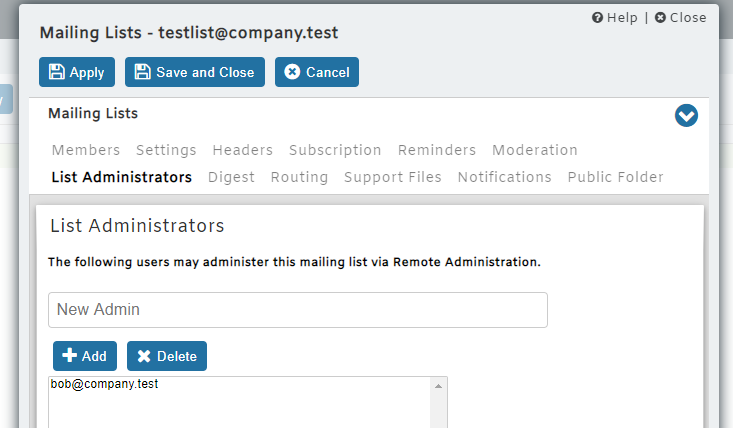
If that user then logs into MDaemon Remote Administration they can administer the list and add/remove members, set notifications, etc via Mailing Lists -> [listname] -> Edit.
Related Articles
Creating an MDaemon mailing list
A mailing list is a list of email addresses which can be emailed via a single email address (typically listname@company.mail). They are a useful way of sending a mailshot to a number of email addresses without having to resort to bcc’ing the message. ...Creating a team shared email address using the MDaemon Ticketing System
An common requirement in organisations that use email heavily is to have a team of people monitoring inbound emails to service email addresses such as info@…, sales@… and support@… etc. They want multiple users to be able to see and manage emails ...How many gateways can be configured in MDaemon?
MDaemon limits the number of allowable gateways to the number of users on the license. For example, a MDaemon 50 user license will be able to configure 50 domain gateways. The installer will throw up a warning if the current number of gateway domains ...How to track an email through the MDaemon logs
On a default installation, MDaemon will log all mail and user activity into the \MDaemon\Logs\ directory and each log file will have that days date in it’s filename in the form MDaemon-YYYY-MM-DD-<servicename>.log. Prior to tracking an email through ...Configuring ActiveSync in MDaemon and addressing common configuration issues
MDaemon’s ActiveSync options are located at Setup -> Mobile Device Management -> ActiveSync and it’s necessary to enable ActiveSync in this location: Once enabled MDaemon will generate an ActiveSync 30 day trial key automatically. The ActiveSync ...